Shopify Online Store 2.0 hat die Theme-Entwicklung durch modulare Sections grundlegend modernisiert. Mit JSON Schema kannst du im Theme Editor vielfältige Einstellungen freigeben, sodass Store-Owner Inhalte ohne Code-Anpassungen steuern. In diesem Artikel bauen wir zunächst eine dynamische Section für einen Promotion-Banner und zeigen anschließend, wie sich der Ansatz für spezialisierte Bereiche deines Stores erweitern lässt.
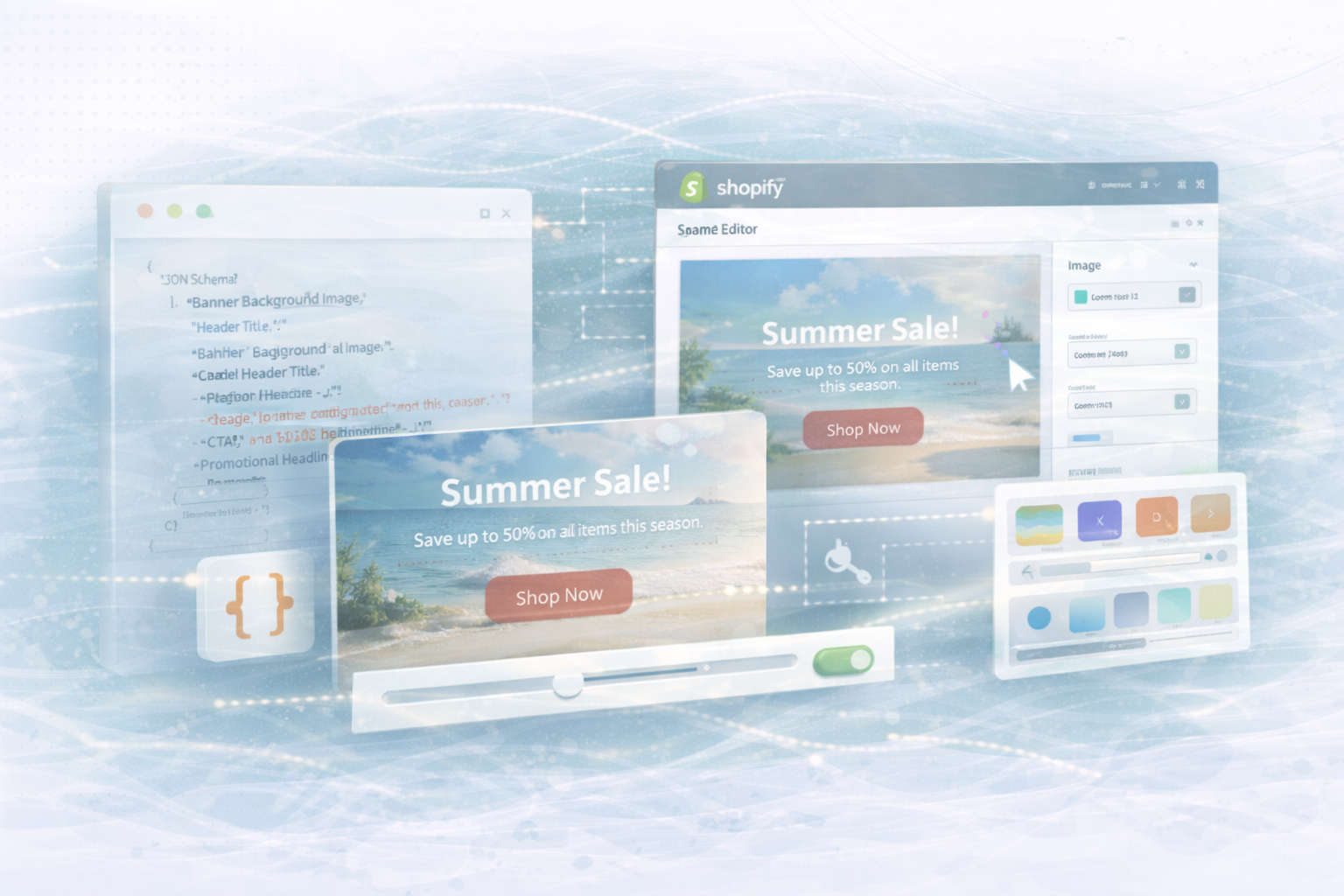
Der „Dynamic Promotion Banner“ ist eine flexible, visuell starke Section, die Händler an verschiedenen Stellen des Shops einsetzen können. Die Section enthält eine übergeordnete Headline als Header, eine Promotional Headline, Subtext, ein Hintergrundbild und einen Call-to-Action-Button. Alle Elemente sind per JSON Schema im Theme Editor konfigurierbar, sodass die Section vollständig ohne Code bearbeitet werden kann.
Lege im Verzeichnis sections eine neue Datei an, zum Beispiel dynamic-promotion-banner.liquid. Darin kombinierst du Liquid-Markup mit JSON Schema, um sowohl Rendering-Logik als auch Editor-Settings zu definieren.
Liquid-Markup mit klarem Header
HTML:
<!-- dynamic-promotion-banner.liquid -->
<section class="dynamic-promotion-banner" style="background-image: url({{ section.settings.banner_image | img_url: '1600x' }});">
  <div class="banner-content" style="text-align: center; padding: 60px 20px;">
    <!-- Header Section -->
    {% if section.settings.header_title != blank %}
      <header>
        <h1 style="color: {{ section.settings.header_color }};">{{ section.settings.header_title }}</h1>
      </header>
    {% endif %}
    <!-- Promotional Headline -->
    {% if section.settings.headline != blank %}
      <h2 style="color: {{ section.settings.headline_color }};">{{ section.settings.headline }}</h2>
    {% endif %}
    <!-- Subtext -->
    {% if section.settings.subtext != blank %}
      <p style="color: {{ section.settings.subtext_color }};">{{ section.settings.subtext }}</p>
    {% endif %}
    <!-- Call-to-Action Button -->
    {% if section.settings.cta_text != blank and section.settings.cta_link != blank %}
      <a href="{{ section.settings.cta_link }}" class="btn" style="background-color: {{ section.settings.cta_bg_color }}; color: {{ section.settings.cta_text_color }};">
        {{ section.settings.cta_text }}
      </a>
    {% endif %}
  </div>
</section>
In diesem Beispiel haben wir einen eigenen Header-Bereich mit einem <h1> als primärem Titel ergänzt. Er ist getrennt von der Promotional Headline und sorgt für eine klare Struktur.
Das JSON Schema am Dateiende macht sämtliche Optionen im Theme Editor editierbar. Hier ein Beispiel, das Header, Headline, Subtext, Hintergrundbild und CTA in den Einstellungen verfügbar macht.
JSON:
{% schema %}
{
  "name": "Dynamic Promotion Banner",
  "settings": [
    {
      "type": "image_picker",
      "id": "banner_image",
      "label": "Banner Background Image"
    },
    {
      "type": "text",
      "id": "header_title",
      "label": "Header Title",
      "default": "Our Special Announcement"
    },
    {
      "type": "color",
      "id": "header_color",
      "label": "Header Color",
      "default": "#333333"
    },
    {
      "type": "text",
      "id": "headline",
      "label": "Promotional Headline",
      "default": "Welcome to Our Special Offer!"
    },
    {
      "type": "color",
      "id": "headline_color",
      "label": "Headline Color",
      "default": "#ffffff"
    },
    {
      "type": "textarea",
      "id": "subtext",
      "label": "Subtext/Description",
      "default": "Enjoy our exclusive deals and offers, tailored just for you."
    },
    {
      "type": "color",
      "id": "subtext_color",
      "label": "Subtext Color",
      "default": "#ffffff"
    },
    {
      "type": "text",
      "id": "cta_text",
      "label": "CTA Button Text",
      "default": "Shop Now"
    },
    {
      "type": "url",
      "id": "cta_link",
      "label": "CTA Button Link",
      "default": "/collections/all"
    },
    {
      "type": "color",
      "id": "cta_bg_color",
      "label": "CTA Button Background Color",
      "default": "#ff0000"
    },
    {
      "type": "color",
      "id": "cta_text_color",
      "label": "CTA Button Text Color",
      "default": "#ffffff"
    }
  ],
  "presets": [
    {
      "name": "Dynamic Promotion Banner",
      "category": "Custom Sections"
    }
  ]
}
{% endschema %}
Dieses Schema gibt Merchant-Teams die volle Kontrolle über Inhalte und Visuals des Banners. Nach dem Speichern erscheint die Section im Theme Editor und kann dort in Echtzeit angepasst werden.
JSON:
{
  "sections": {
    "banner": {
      "type": "dynamic-promotion-banner"
    }
  },
  "order": ["banner"]
}
Die Prinzipien des Promotion-Banners lassen sich auf spezialisierte Sections übertragen, etwa für eine produktbezogene Promo-Section oder eine Card-Section im Grid. Entscheidend ist, Markup und JSON Schema auf den jeweiligen Kontext zuzuschneiden.
Für produktbezogene Promos kannst du zusätzliche Details, eine individuelle Botschaft oder eine kontextspezifische CTA nur auf der Produktseite ausspielen.
Liquid-Markup mit Kontextbezug und Conditional Rendering
Liquid:
<!-- product-custom-promo.liquid -->
{% if product.available %}
  <section class="product-custom-promo" style="background: {{ section.settings.background_color }};">
    <div class="promo-content" style="padding: 40px;">
      {% if section.settings.product_header != blank %}
        <header>
          <h1 style="color: {{ section.settings.product_header_color }};">{{ section.settings.product_header }}</h1>
        </header>
      {% endif %}
      <p style="color: {{ section.settings.product_message_color }};">{{ section.settings.product_message }}</p>
      {% if section.settings.cta_text != blank and section.settings.cta_link != blank %}
        <a href="{{ section.settings.cta_link }}" class="btn" style="background-color: {{ section.settings.cta_bg_color }}; color: {{ section.settings.cta_text_color }};">
          {{ section.settings.cta_text }}
        </a>
      {% endif %}
    </div>
  </section>
{% endif %}
JSON:
{% schema %}
{
  "name": "Product Custom Promotion",
  "settings": [
    {
      "type": "color",
      "id": "background_color",
      "label": "Background Color",
      "default": "#f9f9f9"
    },
    {
      "type": "text",
      "id": "product_header",
      "label": "Product Header Title",
      "default": "Special Offer for This Product"
    },
    {
      "type": "color",
      "id": "product_header_color",
      "label": "Product Header Color",
      "default": "#333333"
    },
    {
      "type": "textarea",
      "id": "product_message",
      "label": "Promotional Message",
      "default": "Get an exclusive discount when you buy this product today!"
    },
    {
      "type": "color",
      "id": "product_message_color",
      "label": "Message Text Color",
      "default": "#333333"
    },
    {
      "type": "text",
      "id": "cta_text",
      "label": "CTA Button Text",
      "default": "Buy Now"
    },
    {
      "type": "url",
      "id": "cta_link",
      "label": "CTA Button Link",
      "default": "/cart"
    },
    {
      "type": "color",
      "id": "cta_bg_color",
      "label": "CTA Button Background Color",
      "default": "#ff6600"
    },
    {
      "type": "color",
      "id": "cta_text_color",
      "label": "CTA Button Text Color",
      "default": "#ffffff"
    }
  ],
  "presets": [
    {
      "name": "Product Custom Promotion",
      "category": "Product Sections"
    }
  ]
}
{% endschema %}
Diese Version ist auf den Produktkontext zugeschnitten. Die Einstellungen fokussieren sich auf die produktbezogene Botschaft und CTA. Binde die Section im Produkt-Template ein, damit sie neben den Standard-Produktdetails erscheint.
Wenn du innerhalb einer Card-Section mehrere Cards wie Featured Products, Testimonials oder Promo-Inhalte in einem Grid zeigen möchtest, nutzt du Blocks im JSON Schema und iterierst mit Liquid darüber.
{% for block in section.blocks %} mehrere Karten ausgeben.
Liquid-Outline für eine Card-Section
Liquid:
<!-- card-section.liquid -->
<section class="custom-card-section">
  <div class="cards-wrapper">
    {% for block in section.blocks %}
      <div class="card" style="border-color: {{ block.settings.border_color }};">
        {% if block.settings.card_image != blank %}
          <img src="{{ block.settings.card_image | img_url: '500x' }}" alt="{{ block.settings.card_title }}">
        {% endif %}
        {% if block.settings.card_title != blank %}
          <h3 style="color: {{ block.settings.title_color }};">{{ block.settings.card_title }}</h3>
        {% endif %}
        <p style="color: {{ block.settings.text_color }};">{{ block.settings.card_text }}</p>
        {% if block.settings.card_link != blank %}
          <a href="{{ block.settings.card_link }}" class="btn">Learn More</a>
        {% endif %}
      </div>
    {% endfor %}
  </div>
</section>
JSON:
{% schema %}
{
  "name": "Custom Card Section",
  "max_blocks": 5,
  "blocks": [
    {
      "type": "card",
      "name": "Card",
      "settings": [
        {
          "type": "image_picker",
          "id": "card_image",
          "label": "Card Image"
        },
        {
          "type": "text",
          "id": "card_title",
          "label": "Card Title",
          "default": "Card Title"
        },
        {
          "type": "textarea",
          "id": "card_text",
          "label": "Card Text",
          "default": "Some descriptive text for the card."
        },
        {
          "type": "url",
          "id": "card_link",
          "label": "Card Link",
          "default": "/"
        },
        {
          "type": "color",
          "id": "border_color",
          "label": "Border Color",
          "default": "#cccccc"
        },
        {
          "type": "color",
          "id": "title_color",
          "label": "Title Color",
          "default": "#333333"
        },
        {
          "type": "color",
          "id": "text_color",
          "label": "Text Color",
          "default": "#333333"
        }
      ]
    }
  ],
  "presets": [
    {
      "name": "Custom Card Section",
      "category": "Custom Sections"
    }
  ]
}
{% endschema %}
Mit Blocks können Merchant-Teams im Theme Editor flexibel mehrere Cards hinzufügen und individuell befüllen. Jede Card ist ein Block mit eigenen Settings.
UNHYDE ist eine Webagentur aus München mit Fokus auf Webentwicklung, User Experience und digitales Marketing. Unsere Mission ist es, leistungsstarke digitale Plattformen zu bauen, die spürbare Kundenerlebnisse und messbares Wachstum erzeugen. Wir arbeiten international und sind eine anerkannte Shopify Partner Agentur mit zahlreichen erfolgreich gelaunchten Websites und Webstores.
Wir unterstützen dich bei der Umsetzung modularer Shopify-Sections, der Strukturierung deiner JSON Schemas und der sauberen Integration in den Theme Editor. Schreib uns gern an hello@unhyde.me für ein individuelles Konzept.

Kostenloses Erstgespräch
Jetzt Kontaktieren