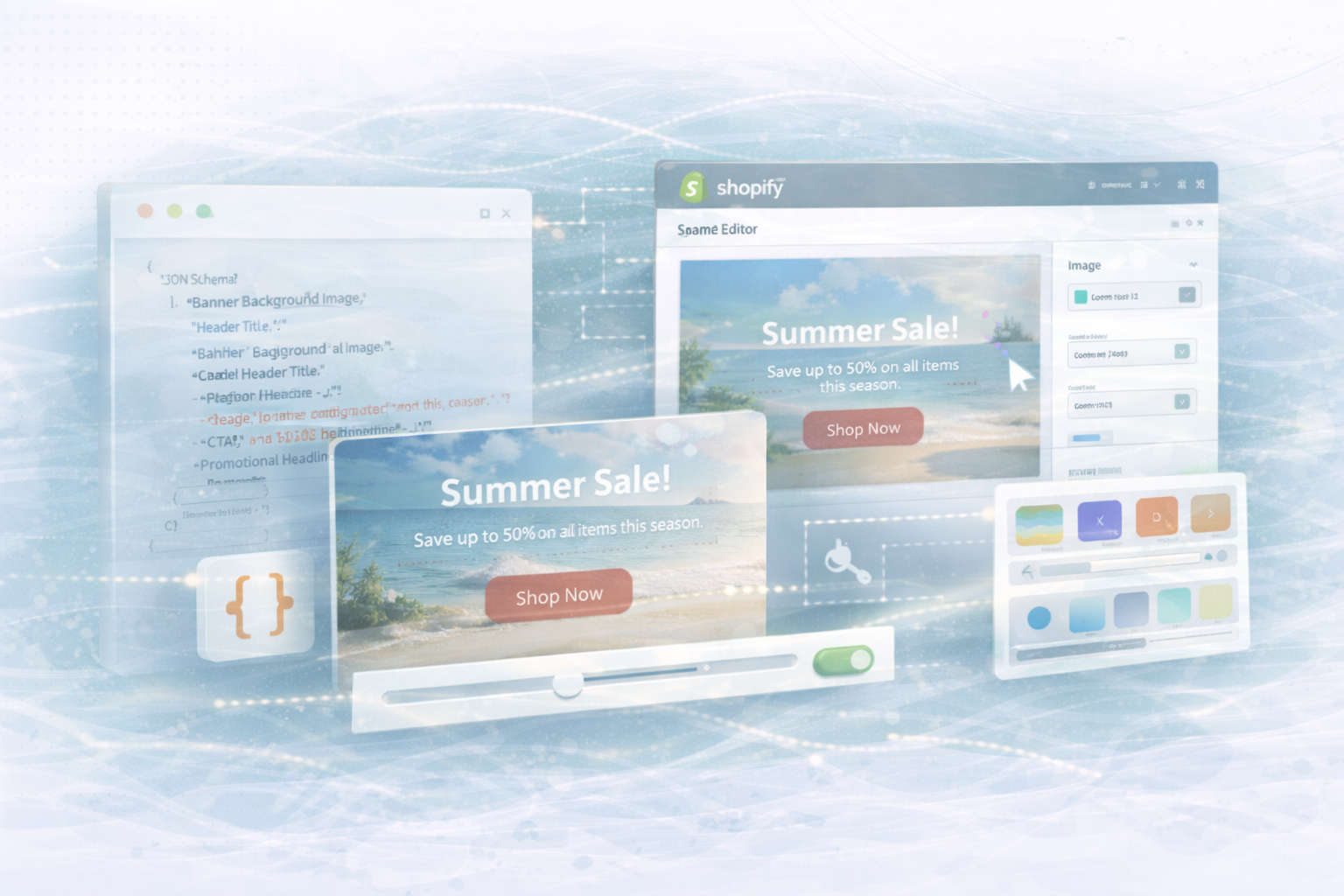
Shopify Online Store 2.0 has fundamentally modernized theme development through modular sections. With JSON Schema, you can release a variety of settings in the theme editor so that store owners control content without code adjustments. In this article, we'll first build a dynamic section for a promotional banner and then show how the approach can be extended to specialized areas of your store.
The “Dynamic Promotion Banner” is a flexible, visually strong section that retailers can use at various points in the shop. The section contains a higher-level headline as a header, a promotional headline, subtext, a background image and a call-to-action button. All elements can be configured via JSON schema in the theme editor, so that the section can be edited completely without code.
Create a new file in the sections directory, for example dynamic-promotion-banner.liquid. In it, you combine liquid markup with JSON schema to define both rendering logic and editor settings.
Liquid markup with a clear header
HTML:
<!-- dynamic-promotion-banner.liquid -->
<section class="dynamic-promotion-banner" style="background-image: url({{ section.settings.banner_image | img_url: '1600x' }});">
  <div class="banner-content" style="text-align: center; padding: 60px 20px;">
    <!-- Header Section -->
    {% if section.settings.header_title != blank %}
      <header>
        <h1 style="color: {{ section.settings.header_color }};">{{ section.settings.header_title }}</h1>
      </header>
    {% endif %}
    <!-- Promotional Headline -->
    {% if section.settings.headline != blank %}
      <h2 style="color: {{ section.settings.headline_color }};">{{ section.settings.headline }}</h2>
    {% endif %}
    <!-- Subtext -->
    {% if section.settings.subtext != blank %}
      <p style="color: {{ section.settings.subtext_color }};">{{ section.settings.subtext }}</p>
    {% endif %}
    <!-- Call-to-Action Button -->
    {% if section.settings.cta_text != blank and section.settings.cta_link != blank %}
      <a href="{{ section.settings.cta_link }}" class="btn" style="background-color: {{ section.settings.cta_bg_color }}; color: {{ section.settings.cta_text_color }};">
        {{ section.settings.cta_text }}
      </a>
    {% endif %}
  </div>
</section>
In this example, we have our own header area with a <h1> added as a primary title. It is separate from the promotional headline and ensures a clear structure.
The JSON scheme at the end of the file makes all options in the theme editor editable. Here is an example that makes header, headline, subtext, background image and CTA available in the settings.
JSON:
{% schema %}
{
  "name": "Dynamic Promotion Banner",
  "settings": [
    {
      "type": "image_picker",
      "id": "banner_image",
      "label": "Banner Background Image"
    },
    {
      "type": "text",
      "id": "header_title",
      "label": "Header Title",
      "default": "Our Special Announcement"
    },
    {
      "type": "color",
      "id": "header_color",
      "label": "Header Color",
      "default": "#333333"
    },
    {
      "type": "text",
      "id": "headline",
      "label": "Promotional Headline",
      "default": "Welcome to Our Special Offer!"
    },
    {
      "type": "color",
      "id": "headline_color",
      "label": "Headline Color",
      "default": "#ffffff"
    },
    {
      "type": "textarea",
      "id": "subtext",
      "label": "Subtext/Description",
      "default": "Enjoy our exclusive deals and offers, tailored just for you."
    },
    {
      "type": "color",
      "id": "subtext_color",
      "label": "Subtext Color",
      "default": "#ffffff"
    },
    {
      "type": "text",
      "id": "cta_text",
      "label": "CTA Button Text",
      "default": "Shop Now"
    },
    {
      "type": "url",
      "id": "cta_link",
      "label": "CTA Button Link",
      "default": "/collections/all"
    },
    {
      "type": "color",
      "id": "cta_bg_color",
      "label": "CTA Button Background Color",
      "default": "#ff0000"
    },
    {
      "type": "color",
      "id": "cta_text_color",
      "label": "CTA Button Text Color",
      "default": "#ffffff"
    }
  ],
  "presets": [
    {
      "name": "Dynamic Promotion Banner",
      "category": "Custom Sections"
    }
  ]
}
{% endschema %}
This scheme gives merchant teams full control over the banner's content and visuals. After saving, the section appears in the theme editor and can be adjusted there in real time.
JSON:
{
  "sections": {
    "banner": {
      "type": "dynamic-promotion-banner"
    }
  },
  "order": ["banner"]
}
The principles of the promotional banner can be transferred to specialized sections, for example for a product-related promo section or a card section in the grid. It is crucial to tailor markup and JSON schema to the respective context.
For product-related promos, you can only display additional details, an individual message, or a context-specific CTA on the product page.
Contextual liquid markup with conditional rendering
Liquid:
<!-- product-custom-promo.liquid -->
{% if product.available %}
  <section class="product-custom-promo" style="background: {{ section.settings.background_color }};">
    <div class="promo-content" style="padding: 40px;">
      {% if section.settings.product_header != blank %}
        <header>
          <h1 style="color: {{ section.settings.product_header_color }};">{{ section.settings.product_header }}</h1>
        </header>
      {% endif %}
      <p style="color: {{ section.settings.product_message_color }};">{{ section.settings.product_message }}</p>
      {% if section.settings.cta_text != blank and section.settings.cta_link != blank %}
        <a href="{{ section.settings.cta_link }}" class="btn" style="background-color: {{ section.settings.cta_bg_color }}; color: {{ section.settings.cta_text_color }};">
          {{ section.settings.cta_text }}
        </a>
      {% endif %}
    </div>
  </section>
{% endif %}
JSON:
{% schema %}
{
  "name": "Product Custom Promotion",
  "settings": [
    {
      "type": "color",
      "id": "background_color",
      "label": "Background Color",
      "default": "#f9f9f9"
    },
    {
      "type": "text",
      "id": "product_header",
      "label": "Product Header Title",
      "default": "Special Offer for This Product"
    },
    {
      "type": "color",
      "id": "product_header_color",
      "label": "Product Header Color",
      "default": "#333333"
    },
    {
      "type": "textarea",
      "id": "product_message",
      "label": "Promotional Message",
      "default": "Get an exclusive discount when you buy this product today!"
    },
    {
      "type": "color",
      "id": "product_message_color",
      "label": "Message Text Color",
      "default": "#333333"
    },
    {
      "type": "text",
      "id": "cta_text",
      "label": "CTA Button Text",
      "default": "Buy Now"
    },
    {
      "type": "url",
      "id": "cta_link",
      "label": "CTA Button Link",
      "default": "/cart"
    },
    {
      "type": "color",
      "id": "cta_bg_color",
      "label": "CTA Button Background Color",
      "default": "#ff6600"
    },
    {
      "type": "color",
      "id": "cta_text_color",
      "label": "CTA Button Text Color",
      "default": "#ffffff"
    }
  ],
  "presets": [
    {
      "name": "Product Custom Promotion",
      "category": "Product Sections"
    }
  ]
}
{% endschema %}
This version is tailored to the product context. The settings focus on the product-related message and CTA. Include the section in the product template so that it appears next to the standard product details.
If you want to show multiple cards such as featured products, testimonials, or promo content in a grid within a card section, use blocks in the JSON schema and iterate over them with Liquid.
{% for block in section.blocks%} issue multiple cards.
Liquid outline for a card section
Liquid:
<!-- card-section.liquid -->
<section class="custom-card-section">
  <div class="cards-wrapper">
    {% for block in section.blocks %}
      <div class="card" style="border-color: {{ block.settings.border_color }};">
        {% if block.settings.card_image != blank %}
          <img src="{{ block.settings.card_image | img_url: '500x' }}" alt="{{ block.settings.card_title }}">
        {% endif %}
        {% if block.settings.card_title != blank %}
          <h3 style="color: {{ block.settings.title_color }};">{{ block.settings.card_title }}</h3>
        {% endif %}
        <p style="color: {{ block.settings.text_color }};">{{ block.settings.card_text }}</p>
        {% if block.settings.card_link != blank %}
          <a href="{{ block.settings.card_link }}" class="btn">Learn More</a>
        {% endif %}
      </div>
    {% endfor %}
  </div>
</section>
JSON:
{% schema %}
{
  "name": "Custom Card Section",
  "max_blocks": 5,
  "blocks": [
    {
      "type": "card",
      "name": "Card",
      "settings": [
        {
          "type": "image_picker",
          "id": "card_image",
          "label": "Card Image"
        },
        {
          "type": "text",
          "id": "card_title",
          "label": "Card Title",
          "default": "Card Title"
        },
        {
          "type": "textarea",
          "id": "card_text",
          "label": "Card Text",
          "default": "Some descriptive text for the card."
        },
        {
          "type": "url",
          "id": "card_link",
          "label": "Card Link",
          "default": "/"
        },
        {
          "type": "color",
          "id": "border_color",
          "label": "Border Color",
          "default": "#cccccc"
        },
        {
          "type": "color",
          "id": "title_color",
          "label": "Title Color",
          "default": "#333333"
        },
        {
          "type": "color",
          "id": "text_color",
          "label": "Text Color",
          "default": "#333333"
        }
      ]
    }
  ],
  "presets": [
    {
      "name": "Custom Card Section",
      "category": "Custom Sections"
    }
  ]
}
{% endschema %}
With blocks, merchant teams can flexibly add multiple cards in the theme editor and fill them individually. Each card is a block with its own settings.
UNHYDE is a web agency from Munich with a focus on web development, user experience and digital marketing. Our mission is to build powerful digital platforms that create tangible customer experiences and measurable growth. We work internationally and are a recognized Shopify partner agency with numerous successfully launched websites and web stores.
We help you implement modular Shopify sections, structure your JSON schemas, and integrate cleanly into the theme editor. Feel free to write to us hello@unhyde.me for an individual concept.

Get in touch
contact now